
Blog post
How to create an OpenAI Admin API key for LeadWatchio
Create an OpenAI Admin key (sk-admin-…) for usage and costs in LeadWatchio — and keep it separate from your normal API key used for scoring and reply drafts.
2 min read
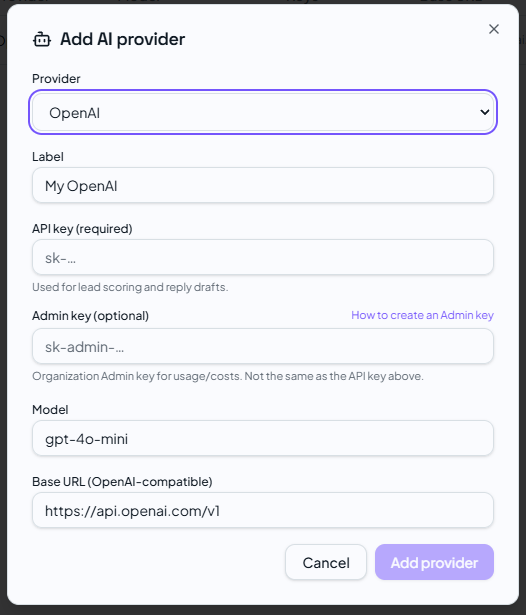
Use this guide when LeadWatchio asks for an Admin key under Settings → AI providers.
Why there are two keys
LeadWatchio uses two different OpenAI secrets. A normal project API key can call models. It cannot read organization spend. An Admin key can read Administration API resources (including costs), but should not replace your chat API key.
| Field in LeadWatchio | Typical prefix | Purpose |
|---|---|---|
| API key (required) | sk-… | Lead scoring, reply drafts, stream setup |
| Admin key (optional) | sk-admin-… | Organization usage / costs APIs |
Before you start
- You are an Owner or Admin of an OpenAI organization.
- Billing is enabled for that organization.
- You already have (or will create) a normal API key for chat completions.
- Treat the Admin key like a password. Anyone with it can read sensitive org data.
Create the Admin key
- Sign in to OpenAI Platform.
- Open organization Settings (not only a single project).
- Go to Organization → Admin keys: platform.openai.com/settings/organization/admin-keys.
- Click Create new secret key.
- Name it clearly, for example: LeadWatchio costs.
- Confirm permissions include Read all Administration API resources.
- Create the key and copy it immediately. OpenAI shows the full secret only once. It starts with sk-admin-.
Add both keys in LeadWatchio
- Open LeadWatchio → Settings → AI providers.
- Click Add provider (or edit your OpenAI provider).
- Paste API key — your normal project key (sk-…) for scoring and drafts.
- Paste Admin key — the sk-admin-… key from the step above (optional).
- Save.
If you skip the Admin key, product AI still works. Usage/cost features that rely on OpenAI’s Administration API stay unavailable until you add it.
Security tips
- Never commit keys to git or paste them into public chats.
- Rotate the key if it may have leaked.
- Prefer one Admin key per organization; revoke unused keys.
- Do not use an Admin key as the completions API key.
Troubleshooting
Insufficient permissions — your OpenAI user is not an org admin/owner, or the key was created without Administration read access.
Costs still empty — confirm the Admin key belongs to the same OpenAI organization that is billed for the regular API key’s usage.
My key starts with sk- but not sk-admin- — that is a normal API key. Create a separate Admin key under Organization → Admin keys.
Connect your AI provider
Add your OpenAI API key and optional Admin key in Settings → AI providers.
Open AI settingsFind buying intent in Telegram before your competitors do
Monitor the public communities your market already uses, qualify signals with AI and review personalized reply drafts in one workspace.
Start free